Manage eSIMs
Last updated July 6th, 2026
You can upload, activate, and delete your eSIM activation codes on Knox Manage to have centralized control over how your device fleet connects to cellular networks.
This feature is only available to devices that are:
- Running Android 15 or later
- Running Wear OS 6 or later (Enterprise Wear OS Framework version 5.0 or later).
- Enrolled using one of the following management types:
- Fully managed
- Work profile on company owned-device
For Wear OS devices, only LTE models support eSIMs, not Bluetooth models.
Upload one or more eSIM activation codes
To successfully activate an eSIM on a device, you must link an activation code to that device’s IMEI. You can upload one or more of these activation code-IMEI pairs by completing the following:
-
Go to Setting > Configuration > Bulk eSIM management.
-
Click Upload.
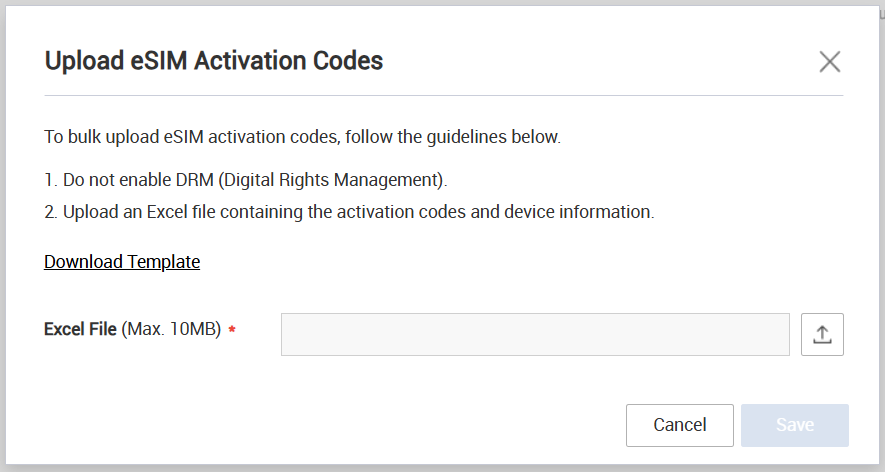
-
Click (Upload icon) and upload your XLS file containing the activation code-IMEI pairs.
You can also download an XLS file that contains the required column headers by clicking Download Template.
To ensure your file is properly formatted, configure your spreadsheet with the following headers:
- Column A – Activation Code
- Column B – IMEI
-
Click Save.
Your activation code-IMEI pairs appear on the list of uploads with the Inactive eSIM Status. If your device status is Enrolled, you can proceed to activate your eSIM on the device.
Activate one or more eSIMs
Activating your eSIM links the uploaded activation code to the device’s IMEI, which allows the device to connect to a cellular network.
To do so:
-
Go to Setting > Configuration > Bulk eSIM management.
-
Select one or more activation codes.
To successfully activate your eSIMs, ensure that for each activation code row the eSIM Status column displays Inactive, and the device Status column displays Enrolled.
-
Click Activate eSIM.
Alternatively, you can activate an eSIM for a device by sending a device command.
A notification displays confirming your selected eSIMs are activated. The eSIM Status changes to Active.
On devices managed by Android Enterprise, if the eSIM can’t automatically activate, the Knox Manage agent alerts the device user with a notification on the device. The user can activate the eSIM on the device by tapping the notification.
Delete one or more eSIMs
You can delete an activation code if you no longer want it to be associated with its paired device on Knox Manage.
To remove an eSIM plan from a device, you must send a device command.
To do so:
-
Go to Setting > Configuration > Bulk eSIM management.
-
Select one or more activation codes.
-
Click Delete.
-
Click OK on the Delete dialog that opens.
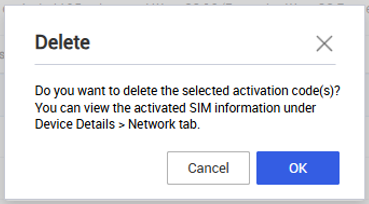
Your selected eSIMs are deleted from the list.
View an eSIM and its status
On the Bulk eSIM Management page, you can view details of the eSIMs that you’ve uploaded, such as the Activation Code, IMEI/MEID, and Last Updated date. You can also hover over an Activation Code’s tooltip to see the complete Carrier URL.
You can search for a specific eSIM by its Activation Code, eSIM Status, Device Name, full IMEI/MEID, Serial Number, and Mobile Number.
Under the eSIM Status column, the uploaded eSIM shows one of three statuses. The following table explains what each status means, and what corresponding actions are available:
| Status | Description | Available actions |
|---|---|---|
| Inactive | eSIM is not activated on the device. |
Activate eSIM Delete |
| Processing | eSIM activation is in progress on the device. | None |
| Active | eSIM is successfully activated on the device. | Delete |
If the eSIM Status is Inactive, you can hover over the tooltip in the eSIM Status column to see the reason for the status.
On this page
Is this page helpful?