Unassign or delete apps
Last updated June 17th, 2026
If you no longer need to manage an app through Knox Manage, you can either unassign the app from one or all groups or organizations. You can also delete it from the app list, which automatically unassigns the app from all groups or organizations.
Unassign an app
When you unassign an app, the app is removed from groups or organizations that the app was previously assigned to. However, the app isn’t deleted from devices it was already installed on unless specified otherwise, and is not deleted from your apps list. There are two methods to unassigning apps:
- Unassign an app from one or more groups or organizations from the Apps page.
- Unassign one or more apps from one group or organization on the Groups or Organizations page.
Unassign an app from one or more groups or organizations
To unassign an app from one or more groups or organizations:
- Go to Library > Apps.
- Select one app from the apps list, then click ACTIONS > Unassign app. The Unassign app page opens.
- Under Unassign app from:, choose Groups or Organizations.
- Select the groups or organizations that you want to unassign the app from.
- Click UNASSIGN.
Alternatively, you can:
- Go to Library > Apps.
- Click the number link under ASSIGNED GROUPS or ASSIGNED ORGANIZATIONS of the group or organization that you want to unassign the app from.
- Select one or more groups or organizations, then click ACTIONS > Unassign app(s).
The app is unassigned from the selected groups or organizations.
Unassign one or more apps from one group or organization
To unassign one or more apps from a single group or organization:
-
Navigate to the Groups or Organizations page.
-
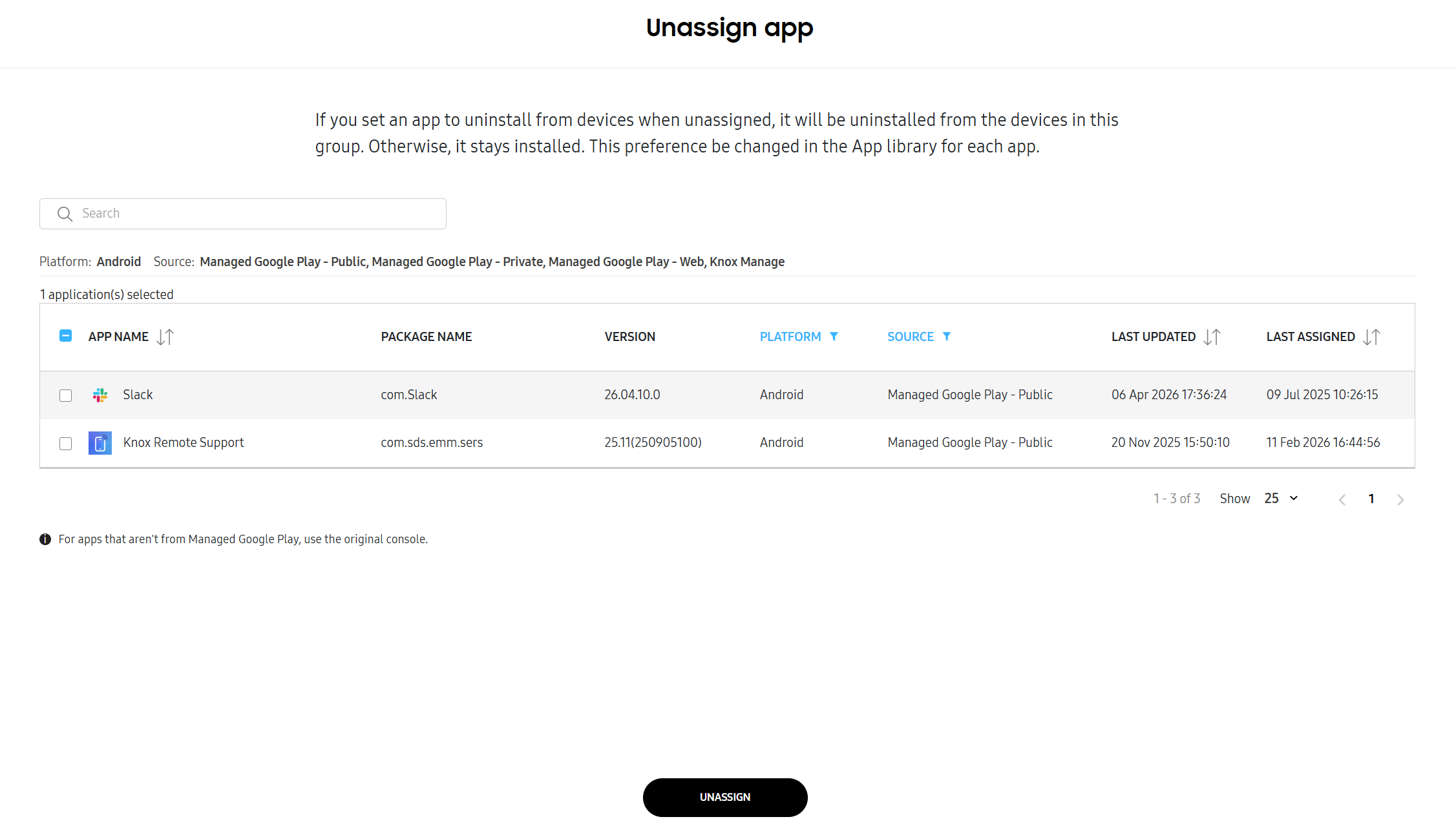
Select one group or organization from the list, then click ACTIONS > Unassign app. The Unassign app page opens.
Alternatively, click the number link under ASSIGNED APPS of the group or organization that you want to unassign apps from. The Unassign app page opens.
-
Select one or more apps, then click UNASSIGN.
The app is unassigned from the group or organization.
Delete an app
When you delete an app, the app is unassigned and uninstalled from all devices by default. However, if you deselected Uninstall if the app is unassigned when you initially added the app to the console, the app will remain installed on devices.
To delete an app:
-
From the navigation pane, go to Library > Apps.
-
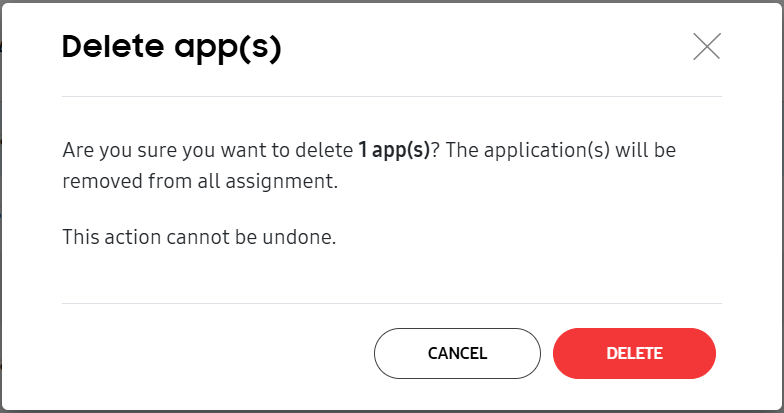
Select one or more apps to delete. Click ACTIONS > Delete app(s). The Delete app(s) dialog displays to confirm your intent.
Alternatively, click the link of an app under the APP NAME column. On the sliding panel that opens, click (More actions icon) > Delete app. The Delete app(s) dialog displays to confirm your intent.
-
Click DELETE to remove the app.
On this page
Is this page helpful?