Assign, push, or unassign content
Last updated June 17th, 2026
When you assign and push content, the content automatically downloads to devices associated with the assigned users, groups, or organizations. If a device is reassigned to a different group, organization, or user, content from the new assignment automatically syncs to the device. You can also unassign content if you no longer want to associate the content with its assigned groups, organization, or users.
Assign content
To assign content to one or more groups, organizations, or users:
-
Go to Library > Content.
-
Select the content that you want to assign.
-
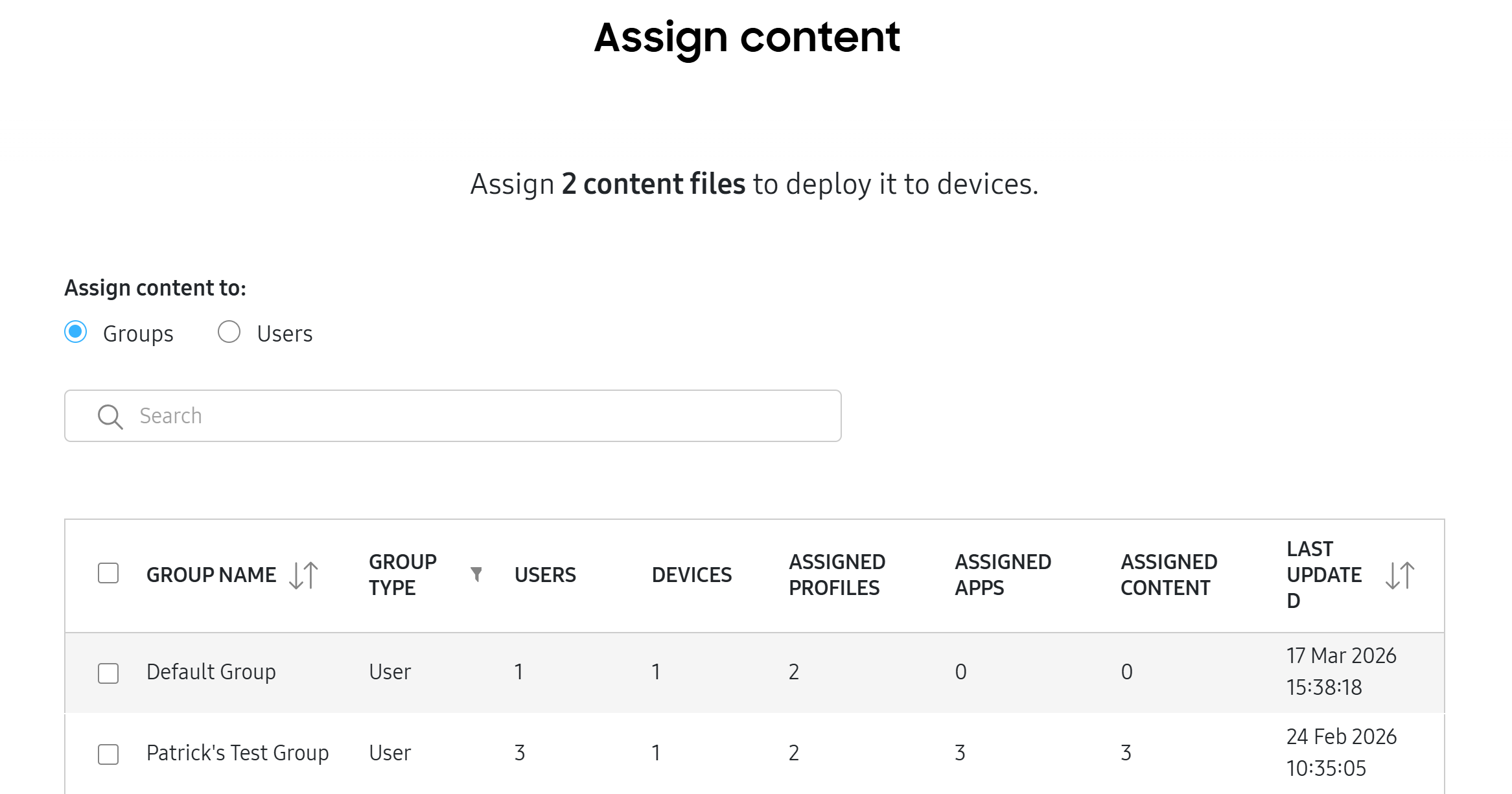
Click ACTIONS > Assign Content. The Assign content page opens.
-
Under Assign content to, select Groups, Organizations, or Users. Then, select the groups, organizations, or users that you want to assign the content to.
- You can also use the Search bar to find the target groups, organizations, or users.
-
Assign the content:
- Click ASSIGN ONLY to assign the content without pushing. Devices will not receive the content until you push.
- Click ASSIGN AND PUSH CONTENT to assign and distribute the content to the selected groups’ or users’ devices.
You can also assign content from the Groups or Organizations page by selecting one or more groups or organizations, then clicking ACTIONS > Assign content.
Push content
Assigned content can be manually pushed to associated devices whenever necessary, such as to deploy the latest versions of files.
To do this:
-
Go to Library > Content.
-
Select the content that you want to push.
-
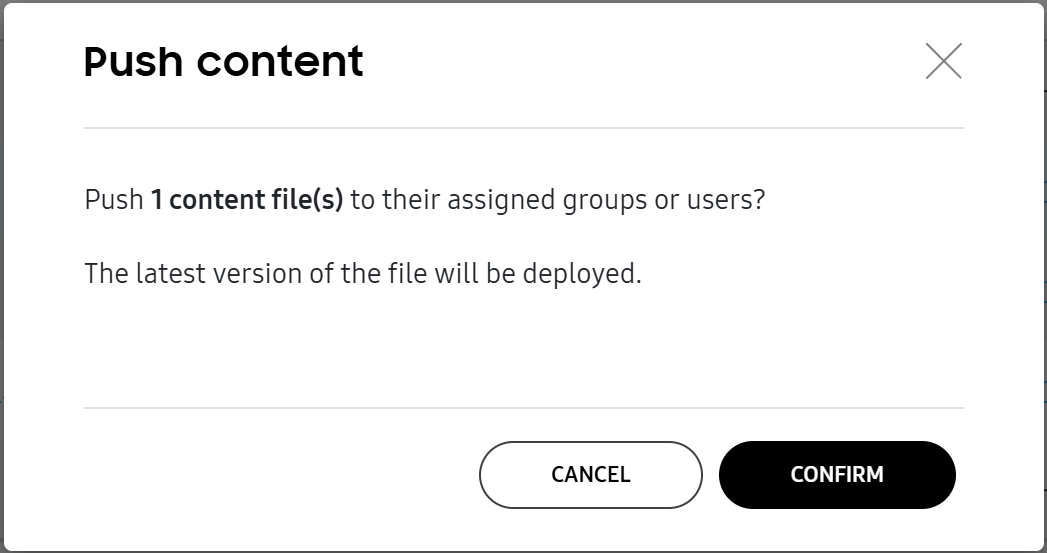
Click ACTIONS > Push content. The Push content dialog opens.
-
Click CONFIRM. The content automatically downloads on devices associated with the assigned groups, organizations, or users.
You can push content during the content assignment process by clicking ASSIGN AND PUSH CONTENT on the Assign content page.
Unassign content
To unassign content from one or more groups, organizations, or users:
-
Go to Library > Content.
-
Select the content that you want to unassign.
-
Click ACTIONS > Unassign content. The Unassign content page opens.
-
Under Unassign content from, select Groups, Organizations, or Users. Then, select the groups, organizations, or users that you want to unassign the content from.
- You can also use the Search bar to find the target groups, organizations, or users.
-
Click UNASSIGN. The content is no longer associated with the selected groups, organizations, or users.
Unassigned content won’t be automatically deleted from devices unless the Delete content from device when unassigned setting is enabled. For more information, see Configure general settings.
On this page
Is this page helpful?