Manage profiles
Last updated June 17th, 2026
After creating your profiles, you can view and manage them on the Profiles page. This page is separated into two tabs:
- SETUP/DYNAMIC (default) contains your normal Setup or Dynamic edition profiles, including Normal and Pro-kiosk mode types.
- ACCESSORY contains your Accessory edition profiles.
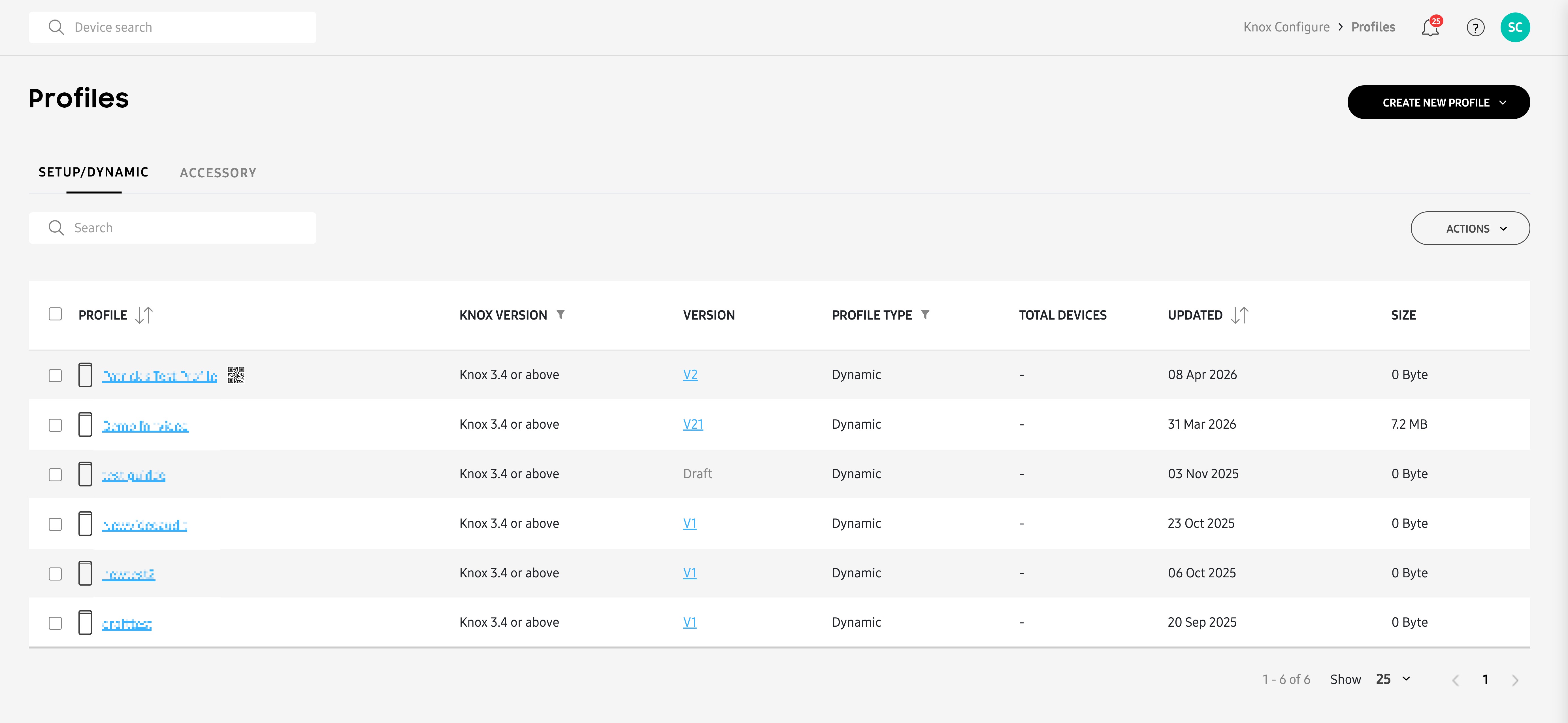
Profile information
The following table describes the available information on the Profiles page:
| Column | Description | Availability |
|---|---|---|
| PROFILE | The name of the profile. Click to update the profile details. | Common |
| KNOX VERSION | The version of Knox that the profile was intended for. If the profile is assigned to devices with a lower Knox version, the devices will still receive the configuration, but some settings may not work as intended. | Common |
| VERSION |
The version of the profile, based on the number of changes made. For Setup/Dynamic only, you can click the version number to view a history of the profile's changes. From the pop-up window, you can:
|
Common |
| PROFILE TYPE | The type of profile created, either Dynamic or Setup. | Setup/Dynamic only |
| TOTAL DEVICES |
The number of devices that have this profile assigned. Click the link to view the total number of devices at each stage of the profile assignment process. The following stages are shown:
|
Setup/Dynamic only |
| TOTAL ACCESSORIES | The number of unique accessory IDs associated with this profile. | Accessory only |
| UPDATED | The date the profile last received an update. If this is a new profile (V1), then this is the date of profile creation. | Common |
| SIZE | The total size of the profile in MB. | Common |
Perform profile actions
The Profiles page provides several actions to help you manage your Setup, Dynamic, and Accessory profiles. To perform an action, select a profile from the table, then click ACTIONS.
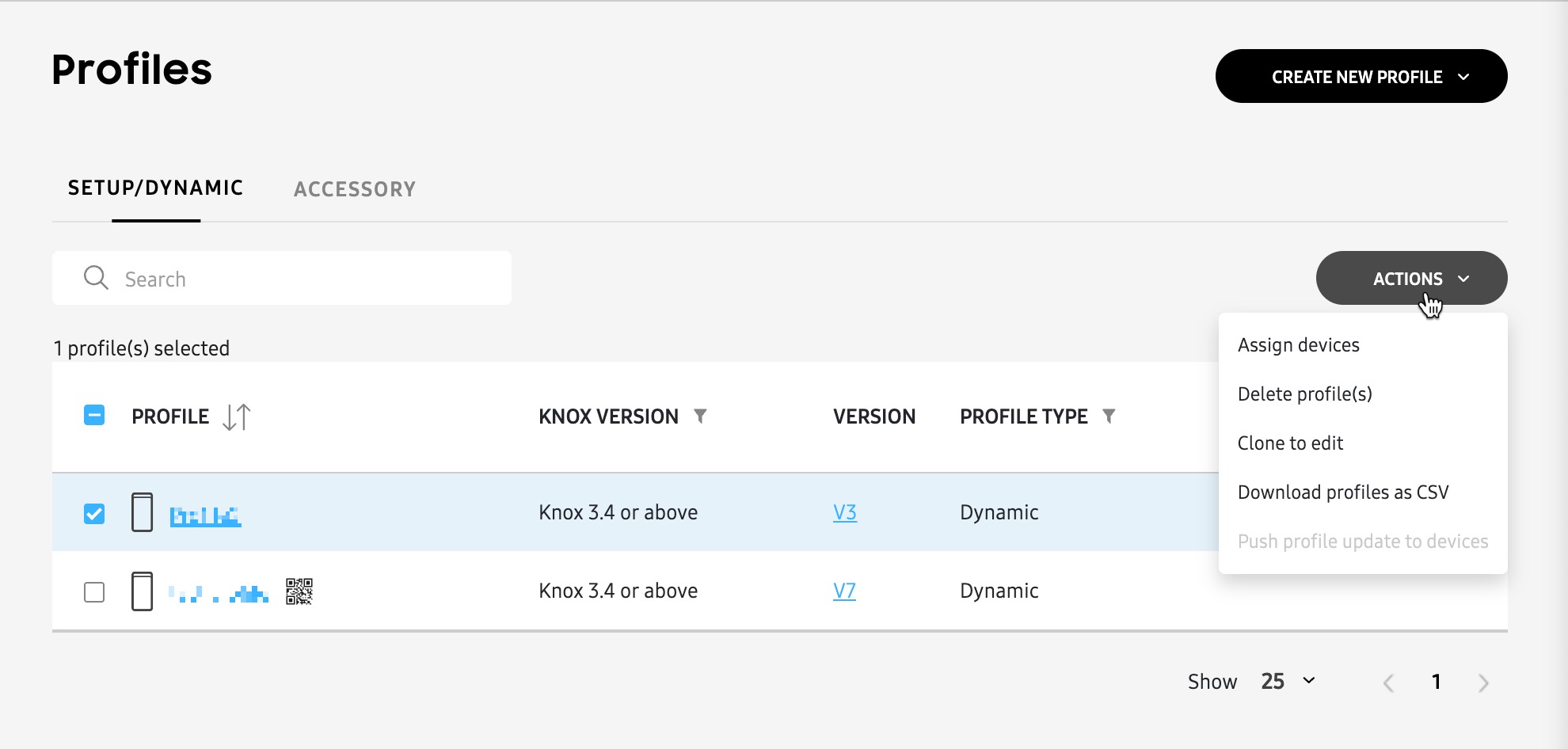
The following profile actions are available:
| Column | Description | Availability |
|---|---|---|
| Assign devices | Opens the ASSIGN DEVICES window showing devices that don't already have a profile assigned. To assign the profile:
|
Setup/Dynamic only |
| Delete profiles | Delete a profile. If profile is currently assigned to devices, you must unassign the devices, or assign a different profile to the devices before deleting this profile. | Common |
| Clone to edit | Create a copy of the current profile. A copy of the profile opens, populated with the previous profile's info and settings. | Common |
| Download profiles as a CSV | Download a CSV version of the profile table for offline viewing. | Setup/Dynamic only |
| Push profile update to devices |
Push the latest version of a profile to your devices, provided you didn't already push the update from the profile creation wizard. This action can only be taken if devices associated with the profile are in the following states:
|
Setup/Dynamic only |
Update profiles
If you want to make changes to an existing profile, you can simply click the profile’s name in the table to open the profile creation wizard. Depending on the profile type (whether it’s a Setup, Dynamic, or Accessory), the process for updating profiles and pushing changes to your devices differ greatly.
Setup edition profiles
When you make updates to a Setup edition profile, your changes can’t be applied to devices that are already configured. However, if you have new devices or devices that don’t currently have a profile applied, then your updated profile can be applied to only those devices.
For example, if you have three devices (Device 1, Device 2, Device 3) currently configured with a Setup edition profile, and you make changes to your profile (thus changing it from v1 to v2), then your existing devices can’t be updated with the latest changes. However, if you apply Setup edition profile v2 to three new devices (Device 4, Device 5, Device 6), then those new devices can receive the latest version of the profile.
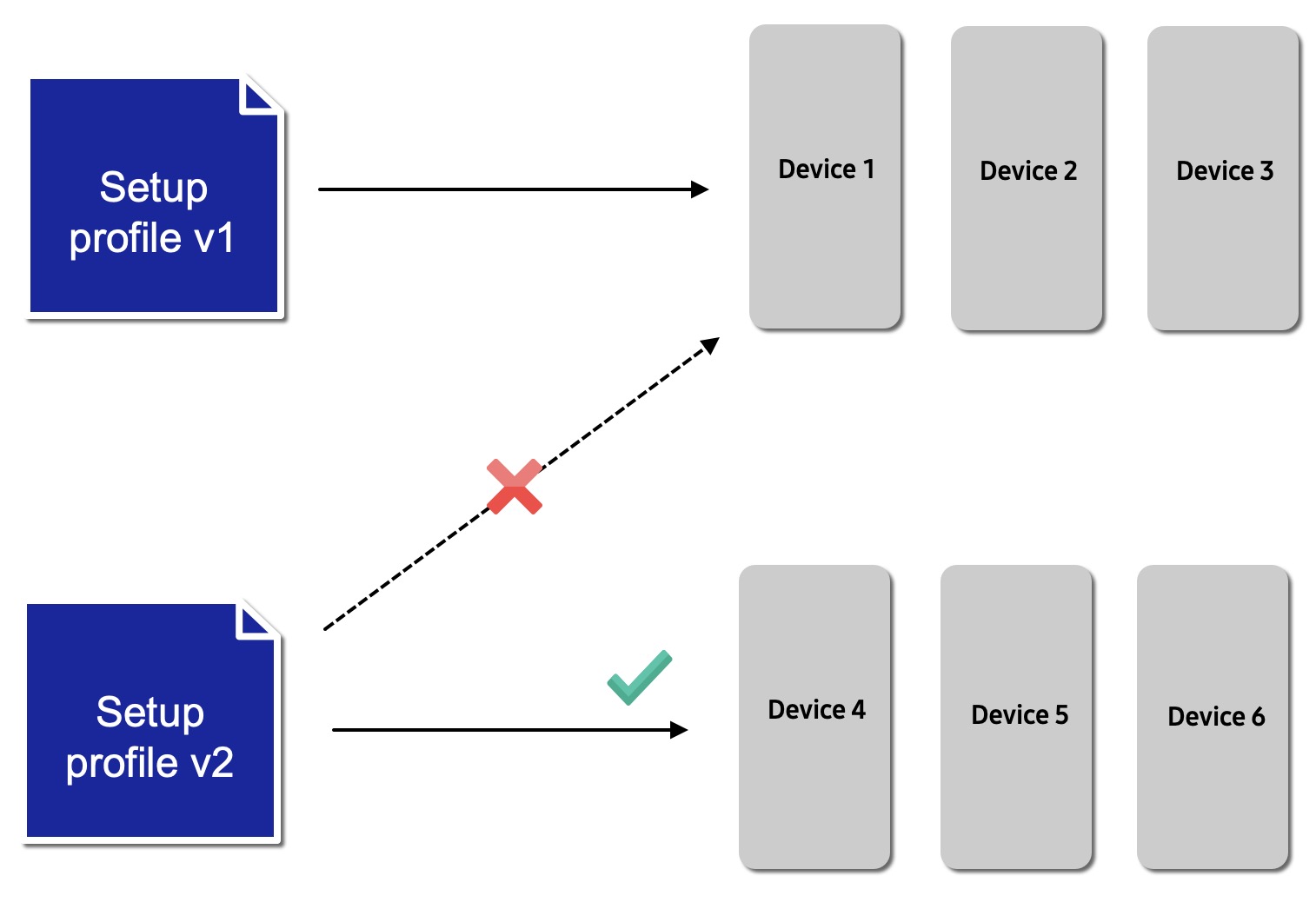
Alternatively, if you want to push Setup edition profile updates to your existing devices, you can perform a factory reset on those devices. Once reset, the devices can receive the latest configuration after booting up.
Performing a factory reset will wipe all data on the device. Use caution when performing this action.
Dynamic edition profiles
Dynamic edition profiles are designed to be updated as frequently as your business requires. After you update a Dynamic edition profile, you have the options to either push the updates to your devices immediately, defer the updates, or schedule the update to be pushed at a specific date and time.
How to push updates immediately
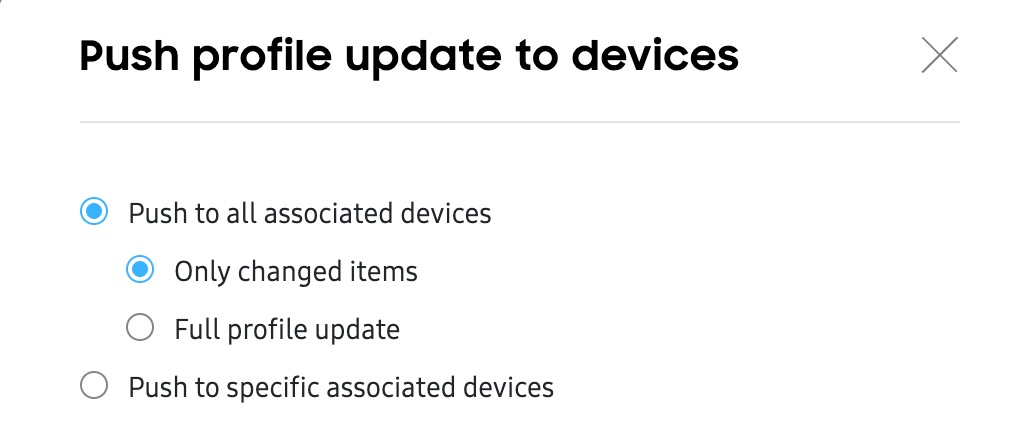
After you update your Dynamic edition profile and click SAVE, you’ll see an option to push your changes to your devices. Click PUSH, then in the Push profile update to devices pop-up window, you’ll have the following options:
-
Push to all associated devices: Pushes the updated profile to all devices assigned to this profile. If selected, you must choose one of the following options:
- Only changed items: Pushes a partial update containing only the changed settings.
- Full profile update: Pushes a full update containing the entire profile.
-
Push to specific associated devices: You can select which devices to push the update to. If this option is selected, you’ll be prompted to select your devices and choose whether you want to push a partial (only changed items) or full profile update on the following page.
After you select your device (all or specific) and update (partial or full) types, you’ll need to choose how you want to inform your device users of the update:
-
Request consent from device user: Users will see a notification letting them know that you want to update their profile. The profile will only download after the user provides consent.
-
Request consent and show custom notification: You can add a custom message (up to 400 characters) to inform users of the update before they give consent.
Additionally, you can include a hyperlink that directs your device users to a webpage for more information. After adding a hyperlink, your device users will see a Learn more link on their device when the notification appears.
-
Send update without requesting device user consent: You can force the device to download the latest profile without requiring user consent.
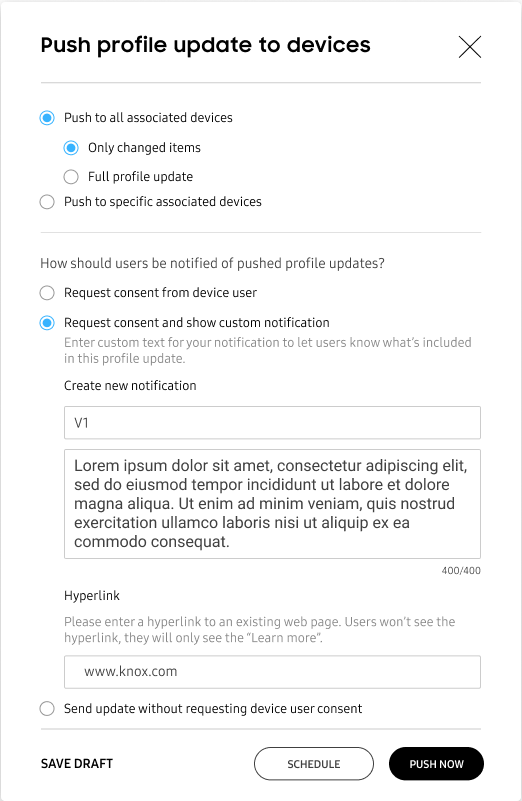
Once you select your update options, click PUSH NOW to push the updated profile to your devices. If you chose to only push the update to specific devices, click SELECT DEVICES, then on the next page, select one or more devices and click PUSH.
Schedule a profile update
If you want to make changes to your existing Dynamic edition profile, but you don’t want to push the updates immediately, you can click SCHEDULE to select a date and time for the system to push the updates. If you previously chose to only push updates to specific devices, click SELECT DEVICES, then on the next page, select your devices and either click PUSH NOW to immediately push the update to your devices, or click SCHEDULE to select the date and time for the system to push the updates.
Defer profile updates
After you make updates to your Dynamic edition profile, you can choose to not push or schedule the update right away. This can be useful for when you want make several profile changes, but not commit to pushing any of those changes until you’re ready to do so. To defer your profile updates to a later time, simply make your changes, then click SAVE and close the profile creation wizard.
When you’re ready to push the profile to your devices, do the following:
-
Go to the Profiles page, then select the profile that you want to push.
-
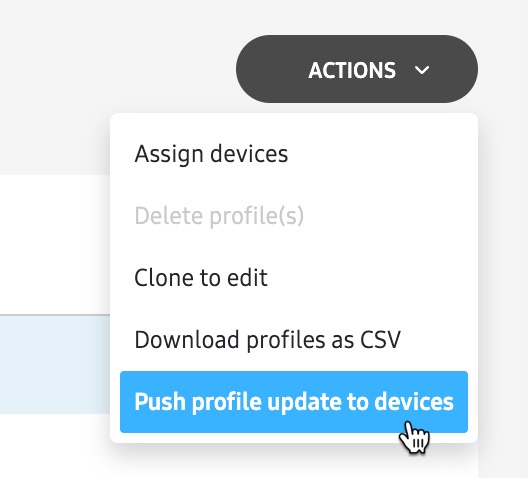
Click ACTIONS > Push profile update to devices.
-
Select how you want to push the update, then select whether you want to include a custom notification and click PUSH NOW if you want to push the updates immediately, or SCHEDULE if you want to pick a date and time to push the update.
You can also push your deferred profile updates to multiple devices at a time — up to 10,000 — using a bulk action.
Delete profiles
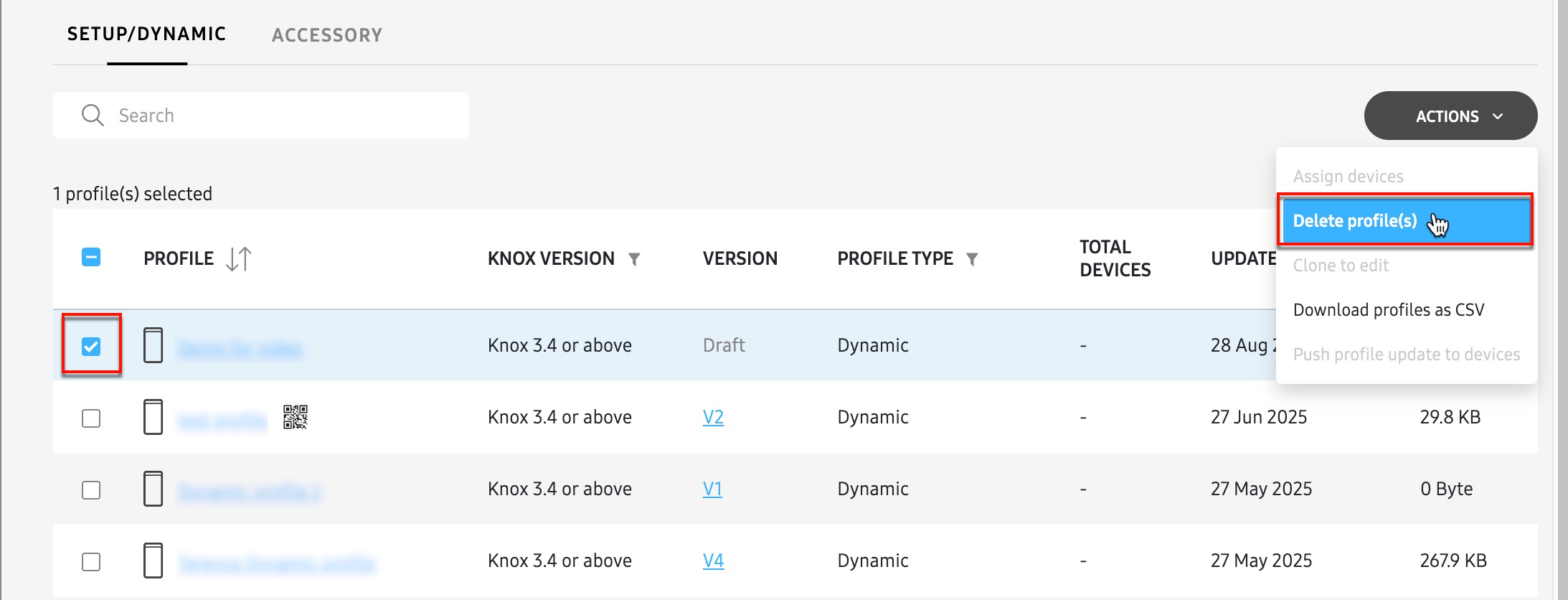
If you no longer need a profile, you can delete it from your Knox Configure account. Before you do this, you must first ensure the profile isn’t currently assigned to any of your devices. If the profile is assigned, you must either unassign it from your devices, or assign a different profile to your devices in order to proceed.
To delete a profile from Knox Configure, simply go to the Profiles page, select the profile, then click ACTIONS > Delete profiles.
Change a device’s profile
There may be situations where you’ll want to change a device’s assigned profile, rather than make updates its existing configuration. For example, you have several devices configured as kiosks for a retail environment using a Dynamic edition profile. You want to repurpose one of these devices to be used by the store manager.
Instead of updating your existing profile configuration with the additional settings for the store manager (which in turn can affect every other device assigned to the profile), you can create a new profile and assign it to the store manager’s device.
To change your device’s existing profile, you simply have to assign a new profile. To do this:
- Select the device on the Profiles page.
- Clicking ACTIONS > Assign devices.
On this page
Is this page helpful?