Assign profile to devices
Last updated June 17th, 2026
Once a profile is created in Knox Configure, it must be associated with your devices for the configurations to take effect. There are two main methods of associating a profile with your device:
- You can assign a profile to your devices from the Devices page
- You can assign devices to your profile from the Profiles page.
This page describes how to assign a profile to your devices from the Devices page. See Assign devices to a profile for the other method.
You can assign a profile to any device in your account that has an Unassigned, Configured, or Profile Assigned status. Depending on the status, the profile assignment workflow differs slightly. If a device is already configured with a profile, or has a profile already assigned, then this workflow is used to Change a device’s assigned profile.
Assign profile to unassigned devices
To assign a profile to your unassigned devices:
-
On the Devices page, select the unassigned devices you want to assign a profile to.
-
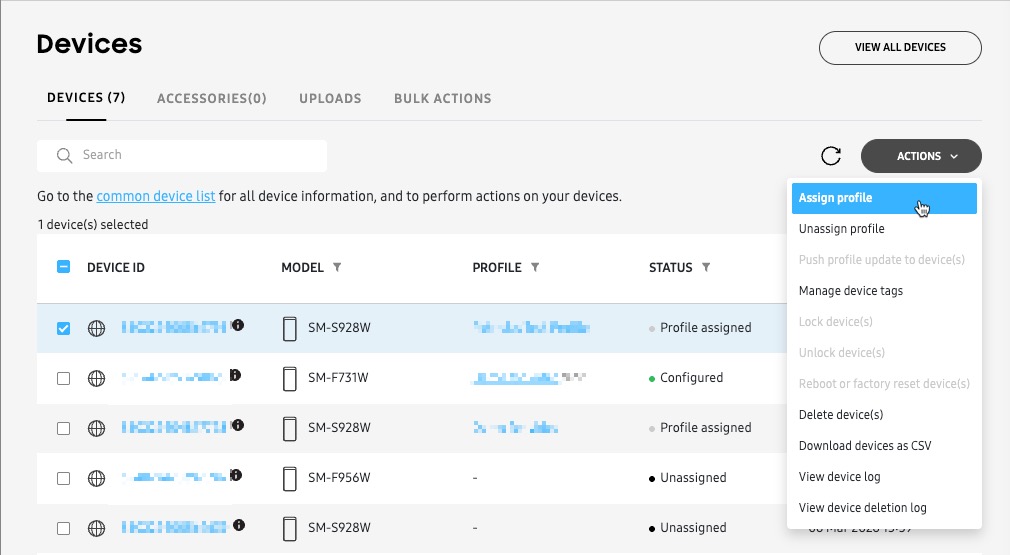
Click ACTIONS in the top right corner, then click Assign profile.
-
On the Select profile screen, select the profile you want to assign to the selected devices, then click ASSIGN.
-
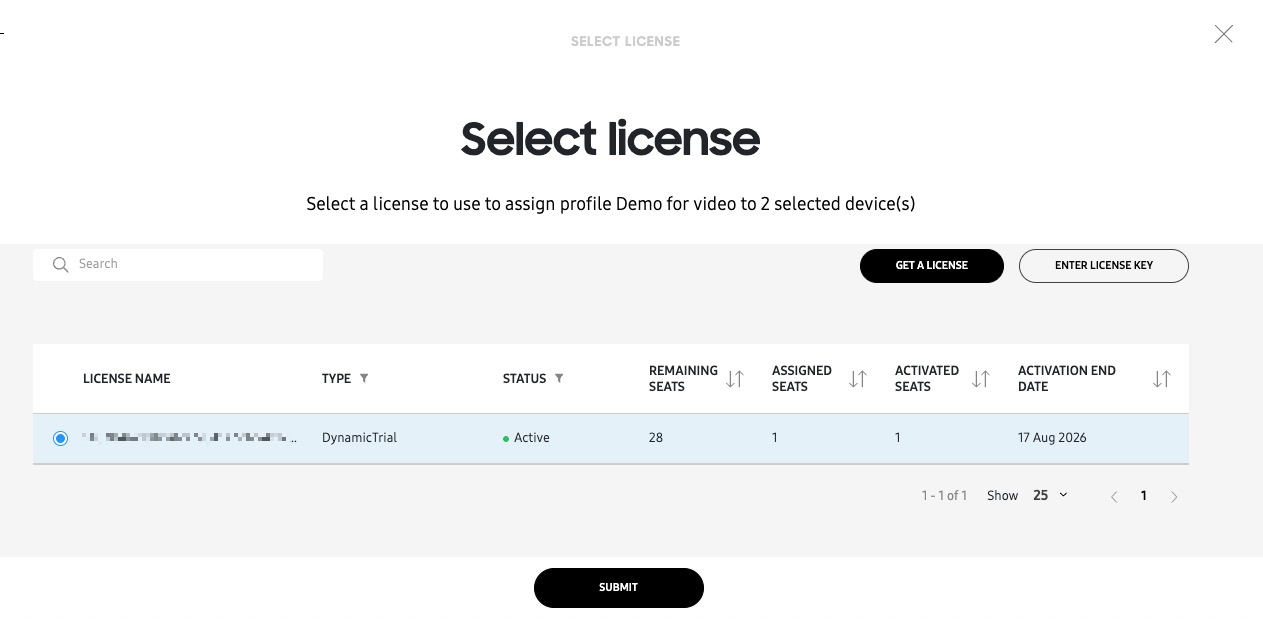
On the following page, select a Knox Configure license.
-
If you don’t have a valid license key, you can click GET A LICENSE to either generate a trial or contact a reseller for a commercial license purchase.
-
If you have a commercial license key, click ENTER LICENSE KEY and provide your license details.
-
-
After selecting your license, click SUBMIT.
Unassign a profile from devices
If you no longer want to associate a profile with a device, the profile can be unassigned. When a profile is unassigned from the device, the following occurs:
- The device keeps all of its apps and content.
- Uninstalling a Dynamic edition profile from a device revokes the (Dynamic edition) license seat, allowing it to be used again with another device.
To unassign a profile from its devices:
-
On the Devices page, select the devices you want to unassign the profile from.
-
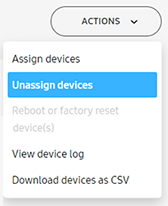
Click ACTIONS in the top right corner, then click Unassign profile.
-
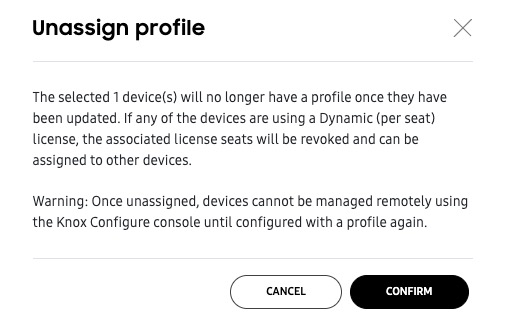
Review the notification on the Unassign profile window, then click CONFIRM to unassign the profile from the device.
Change a device’s assigned profile
If your device is already configured, or already has a profile assigned, you can assign it a different profile at any time. To do this:
-
On the Devices page, select the devices you want to change the profile for.
-
Click ACTIONS in the top right corner, then click Assign profile.
-
On the Select profile screen, select the new profile you want to assign to your devices, then click ASSIGN.
-
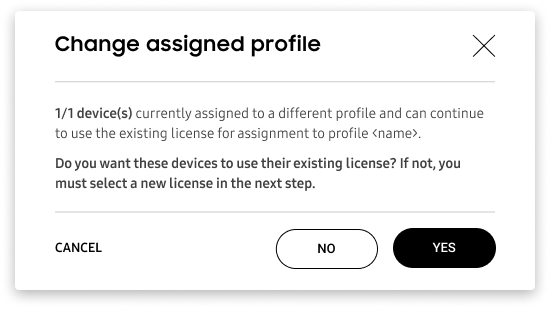
On the Change assigned profile pop-up window, you’ll see a notification asking if you want to use the existing license key from the old profile. Click YES if you want to use the existing license, or click NO to select a new license key.
-
Next, select how you want to notify users of the profile change:
-
Request consent from device user: Users will see a notification letting them know that you want to update their profile. The profile will only download after the user provides consent.
-
Request consent and show custom notification: You can add a custom message (up to 400 characters) to inform users of the update before they give consent.
Additionally, you can include a hyperlink that directs your device users to a webpage for more information. After adding a hyperlink, your device users will see a Learn more link on their device when the notification appears.
-
Send update without requesting device user consent: You can force the device to download the latest profile without requiring user consent.
-
-
Click ASSIGN. Knox Configure will push the new profile to your devices if they are connected, and (if applicable) the user grants consent.
On this page
Is this page helpful?