Getting a Knox license
Last updated September 21st, 2026
Get a Knox license
After you choose a licensing option, you can start an eligible free trial or purchase a commercial license. This page also explains how to activate your license key in Knox Admin Portal.
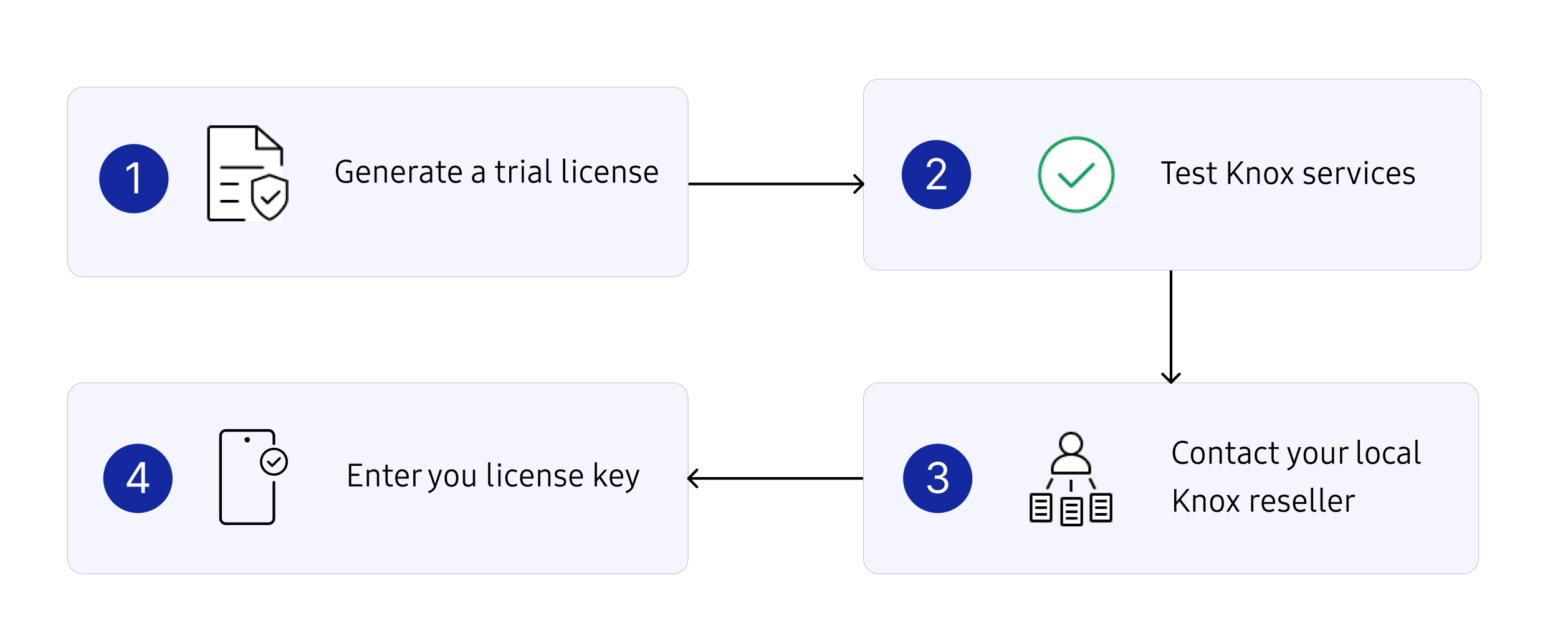
The Knox licenses workflow from trial to purchase is as follows:
-
Start a trial. You can generate a free Knox Suite - Enterprise Plan trial license that provides access to most Knox services.
- New customers can get a trial license when creating a Samsung Knox account.
- Existing customers can extend their trial license from the Knox Admin Portal.
When you get approved for a trial license, it’s automatically added to your account in the Knox Admin Portal.
-
Sign in to the Knox Admin Portal and test the service by enrolling a device. With a Knox Suite - Enterprise Plan trial license, you can also explore other included Knox cloud services.
-
Purchase a commercial license. When you’ve identified the Knox services you want to use and are ready to purchase a commercial license, contact your local Knox reseller. The reseller will provide you with a license key.
For information about available Knox licenses, see Knox Suite Plans and other licenses.
You can also find a reseller from the Licenses page in the Knox Admin Portal. Click Actions > Find reseller to view a list of resellers in your region.
If you need to extend the trial period, you can again generate the trial license in the Knox Admin Portal.
If you’re not sure which license works best for your company yet, note that you can upgrade or downgrade certain licenses at any time.
-
Activate your license. Enter your license key in the Knox Admin Portal to activate Knox services for your full device fleet. Your reseller can also add licenses to your account on your behalf.
Upgrade a license
As your organization’s requirements change, you may decide to use additional Knox services that aren’t included in your current Knox Suite Plan. In such cases, you can upgrade to a Knox Suite Plan that includes the additional services you need. If required, your reseller can also add or remove license seats from an existing license.
To make changes to your license plan, contact your reseller.
- If upgrading to a more comprehensive Knox Suite Plan, you can continue with the current license key.
- If downgrading to a license that includes fewer Knox services, your current license key will become invalid. You must obtain a new license key from your reseller.
Currently, license upgrades are available for the following licenses:
| Current license | Available upgrade |
|---|---|
| Knox E-FOTA | Knox Suite - Enterprise Plan |
| Knox Asset Intelligence | Knox Suite - Enterprise Plan |
| Knox Suite - Essentials Plan | Knox Suite - Enterprise Plan |
Manage a license
Depending on the Knox service, you can manage your Knox service licenses from the Knox Admin Portal, individual service consoles, or your EMM console.
| Knox service | Manage from |
|---|---|
|
Knox Admin Portal licenses menu |
| Knox Guard | Knox Guard license menu |
| Knox E-FOTA On-Premises | Knox E-FOTA On-Premises license menu |
| Knox Platform for Enterprise (Knox Service Plugin) | Other Knox services license menu |
| Knox Platform for Enterprise DualDAR (Knox Service Plugin) | |
| Knox Mobile Enrollment Direct | |
| Knox Platform for Enterprise (Knox Service Plugin) | EMM console |
| Knox Platform for Enterprise DualDAR (Knox Service Plugin) | |
| Knox Capture |
If your Knox Platform for Enterprise license is about to expire within the next 90 days, make sure to renew the license for another two years. Otherwise, your existing devices will be impacted.
On this page
Is this page helpful?