Manage roles
Last updated June 17th, 2026
On the ROLES tab of the Administrators & Roles page, you can define roles with custom permissions for admins who manage one or more services. You can also define roles with common permissions to access cross-service features from the common device list.
Only admins with the Invite and manage administrators or Manage roles permission can access the consolidated Administrators & Roles page.
The Roles tab lists all the roles in your Knox company account, including the super admin, any default roles, and the custom roles you create. You can use the search bar to search for roles by name.
The roles list contains the following information:
| Column | Description |
|---|---|
| SERVICE | The Knox service, or services, the role applies to. |
| ROLE NAME |
It shows Super admin (marked with a crown icon) and the default and custom roles in your Knox company account. Clicking a role name opens a dialog containing its details, which vary depending on the role you clicked:
|
| DESCRIPTION | A short phrase describing the organizational purpose of the role. |
| ADMINS | The number of admins assigned to the role. Click a number to see a full list of the admins and their information. |
Create a role
To create a role with custom permissions:
-
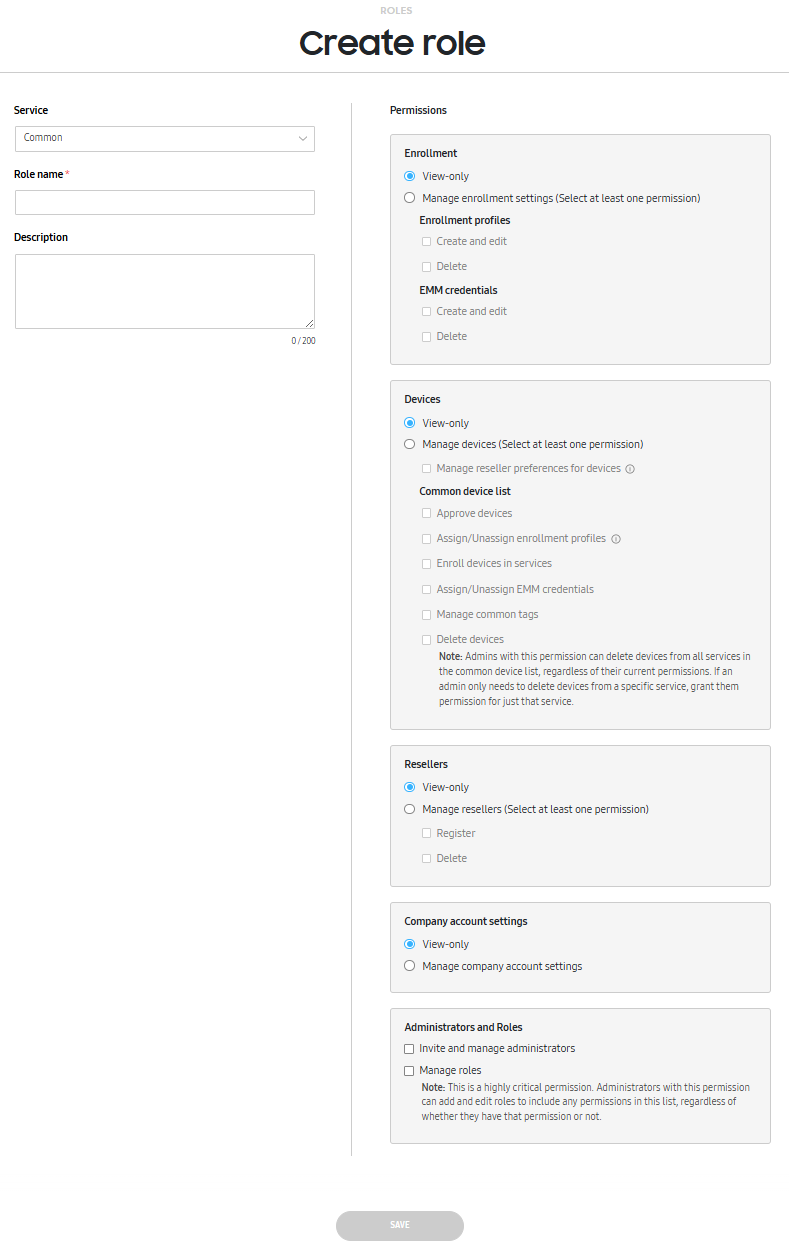
Click CREATE ROLE to the right of the search bar. The Create role page displays.
-
Select a Service for which to create the role.
- Select Common to create a role with common permissions for select features across services. This role applies to the common device list only.
-
Enter a Role name and Description (optional).
-
Select the required Permissions. Note that permissions are shown based on the service you select.
-
(Optional) Set the required permissions to create a Common role:
Permission category Access level Access level Enrollment View enrollment profiles Common > Enrollment > View-only or Manage enrollment settings Create and edit enrollment profiles Common > Enrollment > Manage enrollment settings > Create and edit Delete enrollment profiles Common > Enrollment > Manage enrollment settings > Delete Update EMM credentials Common > Enrollment > Manage enrollment settings > EMM credentials > Create and edit Delete EMM credentials Common > Enrollment > Manage enrollment settings > EMM credentials > Delete Devices View device list Common > Devices > View-only or Manage devices Manage reseller preferences for device uploads Common > Devices > Manage devices > Manage reseller preferences for devices Approve device uploads from resellers Common > Devices > Manage devices > Approve devices Assign or unassign enrollment profiles from common device list Common > Devices > Manage devices > Assign/Unassign enrollment settings Enroll devices to Knox services from common devices list Common > Devices > Manage devices > Enroll devices in services Assign and unassign EMM user ID and password to devices Common > Devices > Manage devices > Assign/Unassign EMM credentials Manage common tags in common device list Common > Devices > Manage devices > Manage common tags Delete devices from common device list to remove them from all services Common > Devices > Manage devices > Delete devices Resellers View resellers Common > Resellers > View-only or Manage resellers Register resellers Common > Resellers > Manage resellers > Register Delete resellers Common > Resellers > Manage resellers > Delete Company account settings View company account settings For Samsung account for Business Common > Company account settings > View-only or Manage company account settings Manage company information For Samsung account for Business Common > Company account settings > Manage company account settings MSPs having this permission, can grant the permission to their customers. Administrators and Roles Invite admins and assign them the common role Common > Administrators and Roles > Invite and manage administrators Create roles and manage all permissions for a common role, including the permissions not assigned to them Common > Administrators and Roles > Manage roles For information about creating roles for other services, see each service’s documentation.
-
Click SAVE.
While admins can create roles with any permissions, they can only assign roles that contain permissions that they have themselves.
Edit or delete a role
To edit an existing role, click its ROLE NAME to open the Edit role page. Similar to the Create role page, you can enter a new role name, description, and permissions for the service. However, you can’t reassign the role to another service.
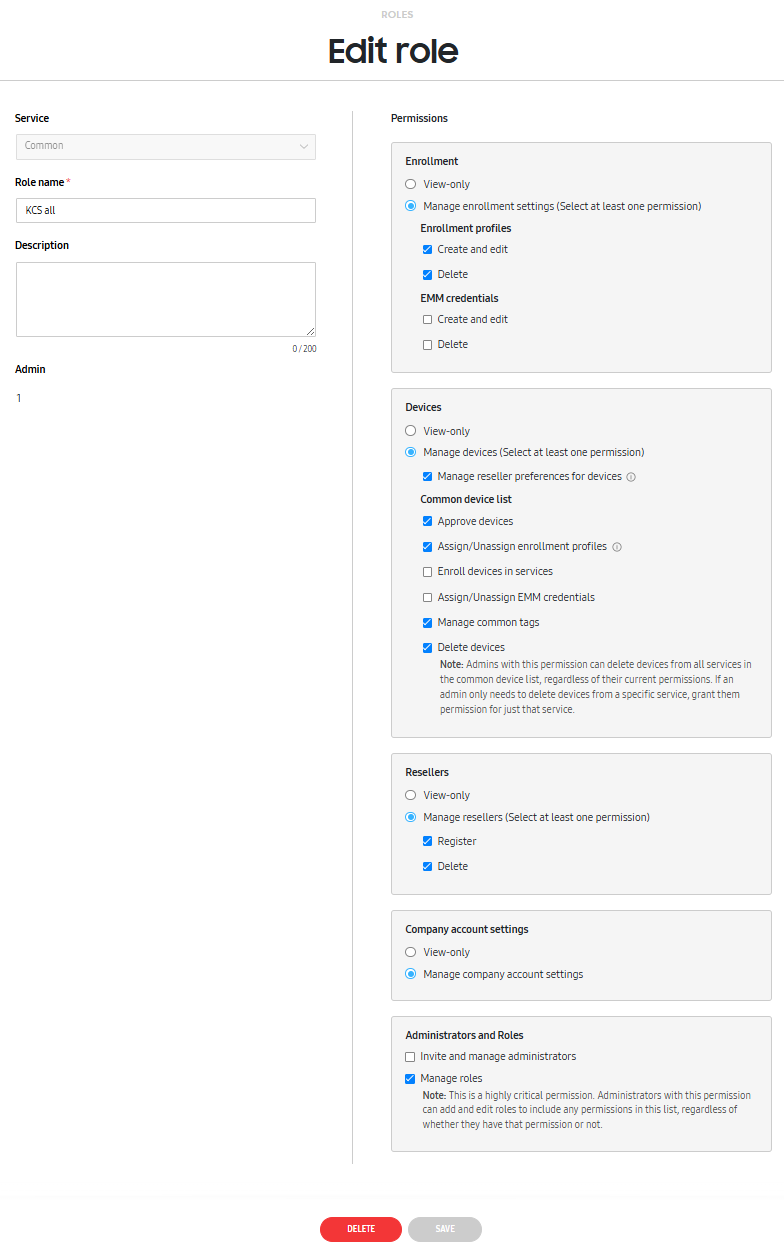
Once you’re finished editing, click SAVE to record your changes.
Alternatively, you can choose to delete the role. Click DELETE at the bottom of the page to remove the role from the list and remove the associated permissions for all admins who are assigned the role. Note that this action can’t be undone.
On this page
Is this page helpful?